
Messengers
How to transcribe WhatsApp voice messages
Every way to turn a WhatsApp voice message into text on Android and iPhone: built-in features, bots and web services.

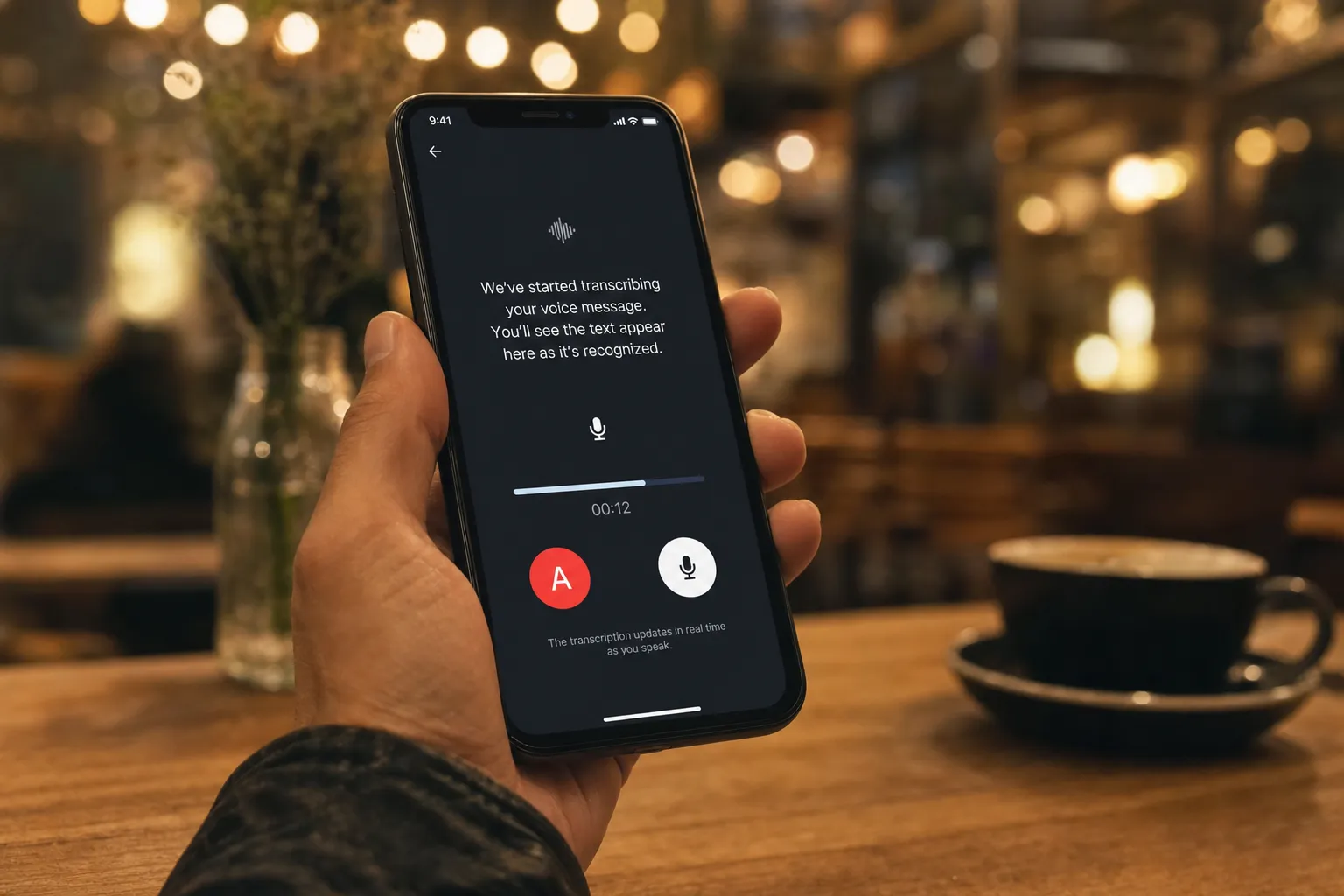
Transcribing a voice message in Telegram means automatically recognising the speech in an audio message and returning it as readable text. Listening to voice notes is awkward in a meeting, on the move without headphones, or when you are hunting for one particular phrase inside a long conversation.
The short version:
The transcribe button next to a voice message is the quickest way to get text without leaving the chat. The feature works on Android, iOS and the desktop app. A common misconception is that transcription is only available with a subscription — in reality the button works for everyone, simply with a limited number of transcriptions per week for accounts without Telegram Premium.
The button looks slightly different on mobile devices and in the desktop app, and processing time depends on the length and quality of the recording.
When the limit is not enough, or you need to transcribe regularly, bots come to the rescue.
Bots are the main free alternative to the built-in button. The idea is simple: you forward a voice message to a bot and get the text back in reply — without leaving Telegram and, usually, without signing up. This suits active users who would rather not pay for a subscription just for transcription.
Most bots accept audio in OGG, MP3 and WAV, and some can also transcribe video messages — Telegram's round "video notes".
When you transcribe through a bot, your voice messages are processed on external servers — forward confidential content with care, and choose bots that are transparent about how they handle your data.
A web service is a standalone platform with a much wider feature set: text editing, export in different formats, access for several users and AI analysis of the content. Compared with a bot it gives you more control over the result, higher recognition accuracy, and it copes far better with large volumes of audio, team tasks and specialised terminology.
On Android:
On iOS:
The file is saved as OGG or MP3 — both formats are accepted by every major transcription service.
For needs like these it makes sense to look at specific platforms.
Each way of transcribing a voice message suits a different situation — from a one-off task to ongoing team work.
| Method | Best for | Difficulty | Export |
|---|---|---|---|
| Transcribe button (Premium) | Regular Telegram users | Low | None |
| Free bot | Active users on a tight budget | Low | Depends on the bot |
| Paid bot | Professionals with recurring tasks | Low | DOCX, text |
| Web service | Teams, large volumes, high accuracy needs | Medium | DOCX, text, subtitles |
For 1–5 voice messages a week, the built-in transcribe button is plenty. For frequent use at no cost, a free bot will do the job. For team work and meeting minutes, a full web service such as Any2Text is more comfortable. For confidential recordings, pick a GDPR-compliant service that deletes files after processing.
For large volumes or team work, try Any2Text — your first minutes are free. You can also explore the full set of transcription tools.

Reviewed by an expert
Founder of Any2Text
Checked that this article matches the real capabilities of the service and that the technical details are up to date.
Verified on 20 August 2026
Every way to turn a WhatsApp voice message into text on Android and iPhone: built-in features, bots and web services.

A complete guide to converting audio into text: the step-by-step process, a comparison of services and expert tips for accurate results.
Convert voice recorder files to text on Android, iPhone and desktop, with tips for clean recordings and AI post-processing.