How to Add Subtitles to a Video
Subtitles have become an essential part of modern video content. They make clips accessible to people who are deaf or hard of hearing, help viewers follow speech in a foreign language, and let people watch video in situations where sound isn't an option — on public transport or at work, for example. On top of that, subtitles boost viewer engagement and help your content travel further: video with a text track is easier for search engines to understand and holds attention longer on social media.
In short, subtitles make your video more accessible, easier to understand and more universal for a wide audience.
What types of subtitles are there?
There are two main types of subtitles, and which one you choose depends on your goals and how the video will be distributed.
Closed captions
Closed captions (CC) are subtitles that viewers can switch on and off at will. They're supported by platforms such as YouTube, Vimeo and most media players. Closed captions often include more than just speech — they add descriptive cues such as [applause] or [loud music] to convey non-verbal sound.
This is a flexible, universal format.
Open subtitles
Open subtitles are burned directly into the image — they're always visible on screen and can't be turned off. This format is popular on social media (Instagram, TikTok, Shorts), where people often watch video with the sound muted.
If you want the text to be guaranteed visible regardless of the device or its settings, add open subtitles.
Subtitle formats
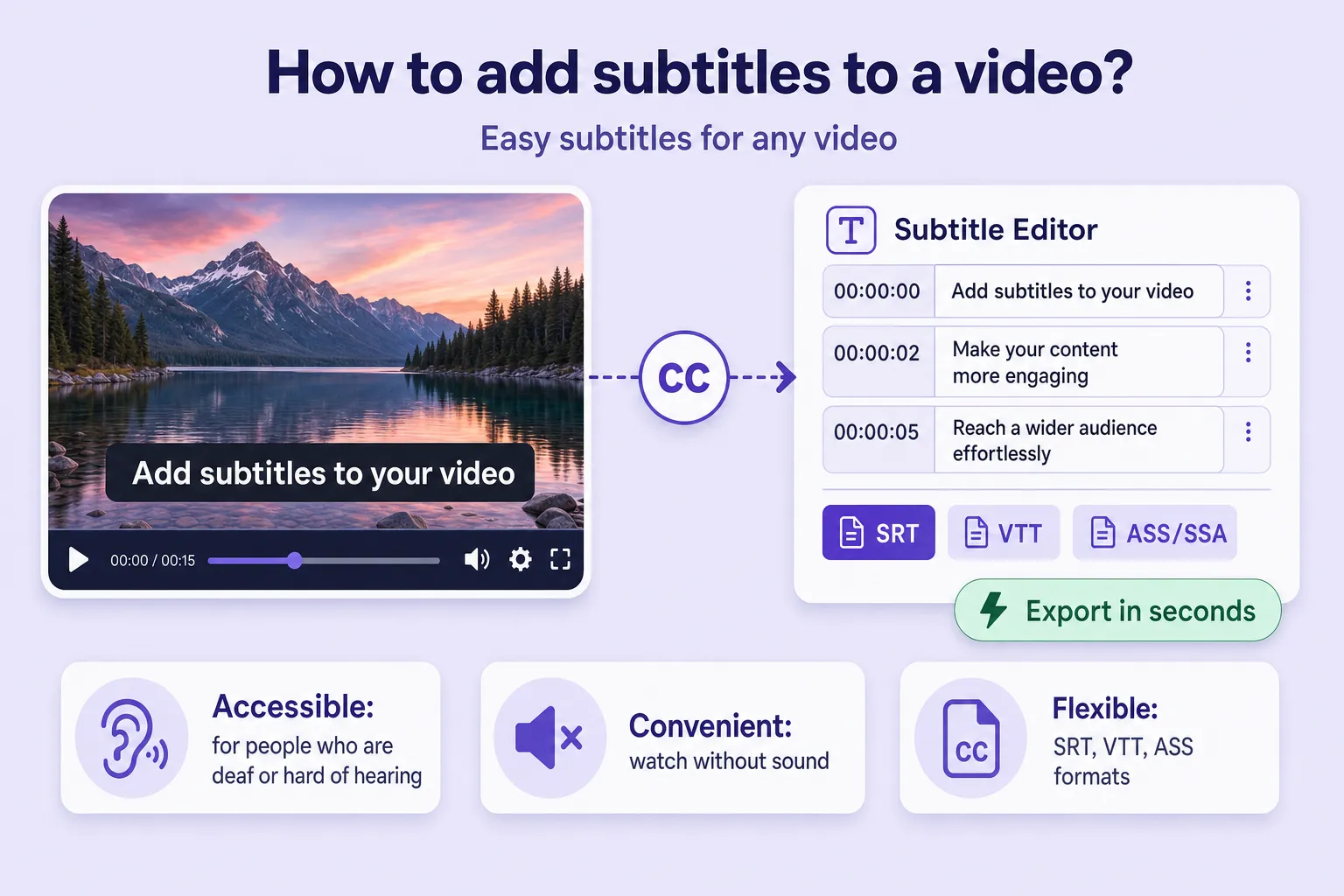
Subtitles also differ by the file format used to store and play back the text track. Here are the main and most widely used ones:
- SRT (SubRip Subtitle) — the most popular and universal format. It's easy to create and edit and is compatible with virtually every video platform and player: YouTube, VLC, OBS, Adobe Premiere and more. It supports numbering, timestamps and text.
- VTT (WebVTT) — used in web players and modern browsers. Its structure is similar to SRT but with extra capabilities: text formatting, subtitle positioning and styling.
- ASS/SSA (Advanced SubStation Alpha) — more advanced formats for professional subtitling. They support styling, animation, colour, fonts and precise text positioning, and are commonly used in anime, films and presentations.
The advantages of automatic subtitle creation
Adding subtitles by hand is slow and labour-intensive: you have to listen to every phrase, set timestamps and type out the text. Fortunately, modern technology lets you add subtitles automatically — quickly and with far less effort. Here are the main advantages of automatically generated subtitles.
1. Saves time
Speech-recognition algorithms dramatically cut the time it takes to create subtitles, turning audio into text quickly and accurately. This matters most for long videos, where the manual method demands a lot of time and effort. Using this kind of technology makes the whole content-processing workflow far more efficient.
2. High recognition accuracy
Any2Text uses modern neural networks that deliver high accuracy — especially with clear audio and good diction. The system can tell different speakers apart, adds punctuation automatically and splits the text into meaningful blocks.
3. Easy to use
There's nothing to install and no complex software to learn. Just upload your video file, choose the language, click a button and get ready-made text with timestamps. Modern platforms can even create subtitles on your phone.
4. Support for popular formats
You can download the finished subtitles in SRT, TXT, DOCX or XLSX — whichever suits your tasks and platforms.
5. Multilingual support
Any2Text works with more than 50 languages, including English, Spanish, Chinese and many others, which is convenient for international content and translation.
6. Automatic speaker detection
When several people are speaking, the system automatically separates their lines by voice — handy for subtitling interviews, podcasts and webinars.
7. Accessibility
The service transcribes your first 15 minutes of video for free, so you can try out the features at no cost.
How to create subtitles with Any2Text
Step 1. Upload your video or audio file
Click the "Upload file" button and choose the video (or audio) you want subtitles for. You can also simply drag and drop the file into the upload window. All popular formats are supported: MP4, AVI, MP3, WAV and more. The maximum length depends on your plan, but the first 15 minutes are free.
Step 2. Choose your settings
In the settings, pick the language for transcription and the service will produce the text of your file in that language. You can also configure the subtitle style and the number of speakers.
Step 3. Start the transcription
Click "Convert to text". The system analyses the audio track and creates a text transcript.
Step 4. Download your subtitles
Done! You can download the text in whatever format is most convenient — choose SRT for ready-to-use subtitles. Try it now with our video-to-text and audio-to-text tools, or explore all of our transcription tools.