
Audio
How to convert audio to text: a complete guide to the tools
A step-by-step process, a comparison of 8 transcription tools and expert tips for turning audio into accurate text.

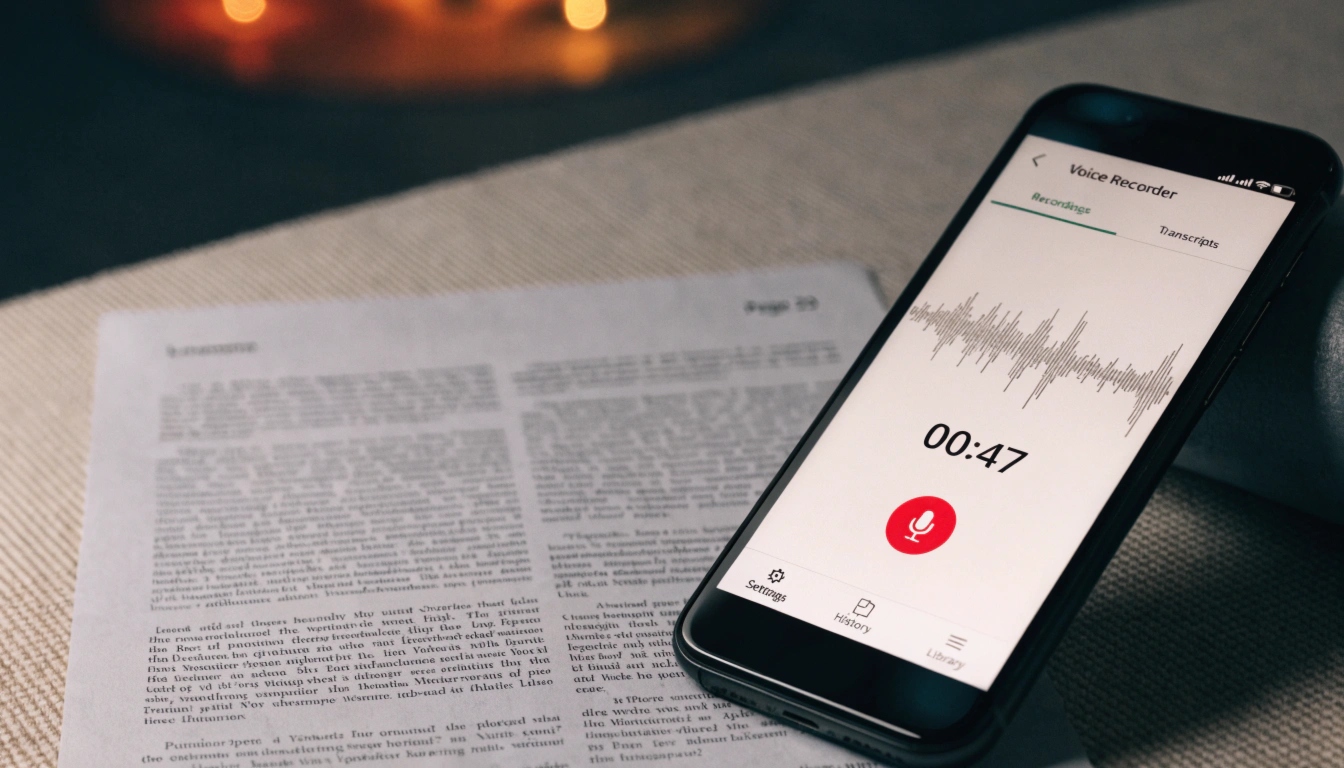
Turning a voice recorder file into text means automatically transcribing a recording of an interview, lecture, personal note or negotiation using AI-powered services. Modern systems, including Any2Text, handle an hour of recorded audio in 3–10 minutes and reach 95–98% accuracy — compared with 4–6 hours of typing by hand.
Automatic transcription is useful across many fields:
This guide covers step-by-step instructions for Android, iPhone and desktop, tips for recording quality, and an overview of post-processing options.
The principle is the same everywhere: the file from your recording app goes into a transcription service, an AI model processes the audio, and you get finished text as the result. Devices differ only in how you send the recording — on every gadget the voice note lives in the standard sound-recording app. Most services accept the usual recorder formats (M4A, AMR, MP3, WAV) through a web interface or a messenger bot.
The voice-recording app on Android has different names depending on the manufacturer: “Voice Recorder” on Samsung, “Recorder” on Xiaomi, “Recorder” on Google Pixel. The steps are the same:
Android recordings are stored in M4A or AMR format — the exact format depends on the phone model. If the option you need isn’t in the “Share” menu, open your file manager, go to the Recordings or Voice Recorder folder and long-press the file — a “Share” option appears there too.
You can transcribe a voice recording on iPhone straight from the phone — no computer needed. Here’s how:
iPhone saves voice recordings in M4A format. If the recording is stored in iCloud, download it to the device first — otherwise the file transfer won’t work. As an alternative, open the recording through the Files app or upload it to the service’s website directly from Safari.
To work on a desktop, first move the file from your phone to the computer — over a cable, through cloud storage or by sending a message to yourself in a messenger. Then:
Services accept standard recorder formats: M4A, AMR, MP3, WAV, OGG, FLAC.
| Device | Recording format |
|---|---|
| Android (Samsung, Xiaomi) | M4A, AMR |
| Google Pixel | M4A |
| iPhone | M4A |
| Third-party recorder | WAV, FLAC |
A computer is more convenient than a phone for long recordings — lectures of an hour and a half or multi-hour meetings: the result copies straight into your working document, and the synchronized-playback feature that some services offer helps you quickly verify an exact quote from an interview.
Tip: if a recording was saved in AMR format, convert it to MP3 before uploading — the service will recognize the speech faster and without compatibility errors.
You can improve the finished text both at the recording stage and after transcription — these two moments affect the result in different ways.
The quality of the recording directly determines transcription accuracy: with clean audio it reaches 95–98%, while heavy noise drops it to 60–70%. A telling case: a journalist recorded an interview with the phone in a jacket pocket instead of placing it on the table — transcription accuracy fell to 70%, some lines were recognized with errors, and the text had to be proofread by hand.
Five rules for an accurate recording:
Modern transcription services turn audio into text and go further, shaping the result into a convenient form.
Diarization is the automatic separation of lines by speaker: the service labels phrases “Speaker 1” and “Speaker 2” instead of one continuous stream of text. On an interview or meeting recording, this feature saves hours of manually marking up who said what.
Clean-prose style turns a raw, word-for-word transcript full of filler words, repetitions and unfinished phrases into neat, readable text:
| Verbatim transcript | Clean-prose style |
|---|---|
| “So, like, you know, we decided that, uh, we kind of need to take this issue more seriously…” | “We decided to take this issue more seriously.” |
Each mode is useful to a different audience depending on who works with the text. For a journalist, a short summary helps quickly find the right fragment of an interview for a quote. For an editor, a ready-made article structure saves time on arranging the material. For a researcher, highlighted key points make it easier to navigate a long recording without replaying the whole file.
Some services additionally offer a summary of a long recording, formatting the text as a structured article, and highlighting key points. The synchronized-playback feature — clicking a fragment of text jumps the audio to that exact moment — is especially handy when checking precise quotes from an interview.
Try transcribing a short recording with Any2Text — it takes just a couple of minutes.
A step-by-step process, a comparison of 8 transcription tools and expert tips for turning audio into accurate text.
Step-by-step ways to turn voice messages into text in WhatsApp, Telegram and iMessage, with apps for Android and iPhone.
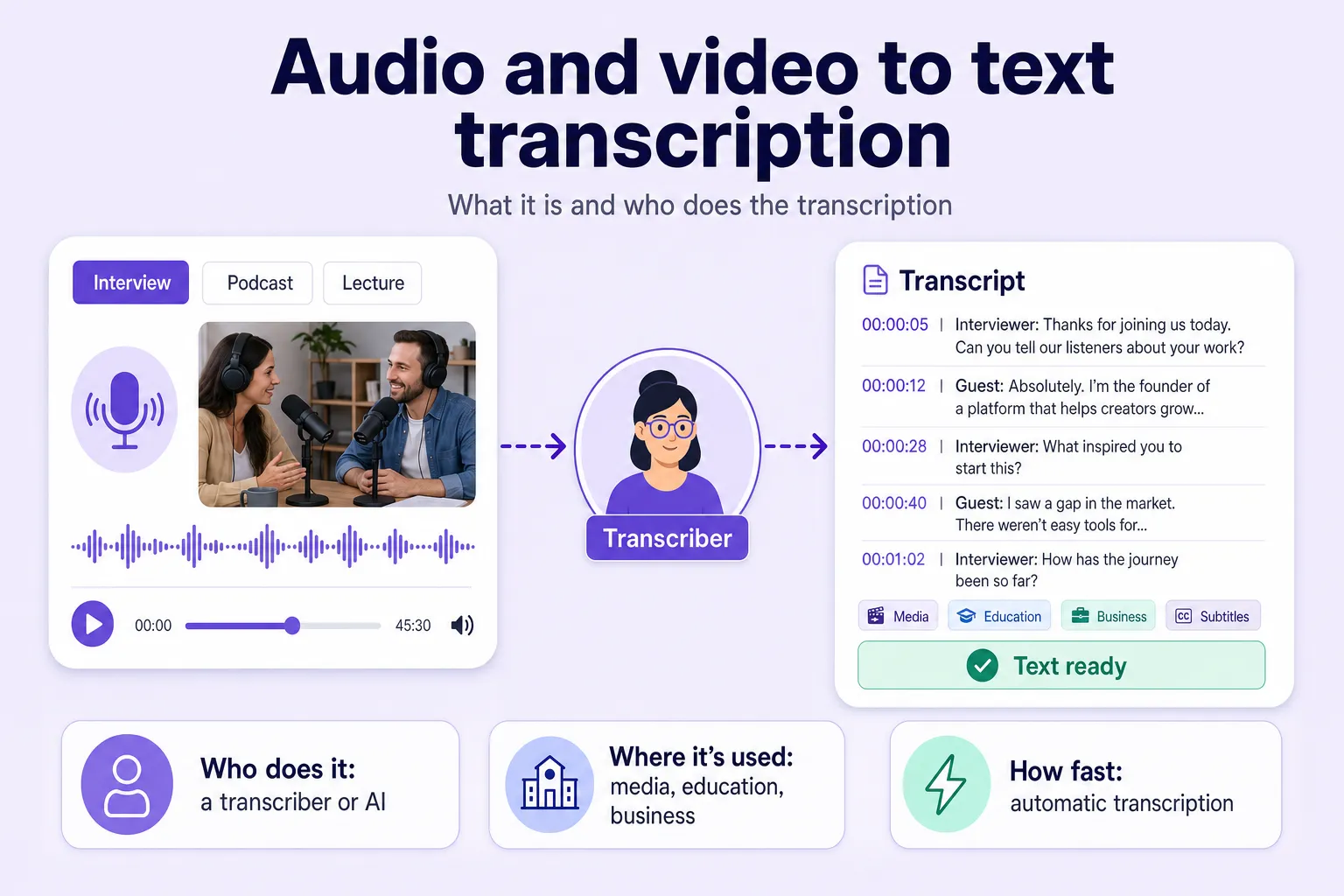
A transcriptionist turns spoken audio and video into written text — here's what they do and how automatic speech recognition speeds the job up.